Expiry date control for supermarkets, greengrocers and grocery stores
What expires first sells first
Enter the expiry date when you receive the delivery note and forget the notebook. Bipe warns you about what's about to expire and lets you mark it down, write it off as waste or mark it as sold in one tap.
- Included in every plan
- No lock-in
- Works offline
Built for
- Supermarkets
- Greengrocers
- Butchers
- Fishmongers
- Grocery stores
- Bars and cafés
From the supplier's delivery to the shelf
1. Enter the date on arrival
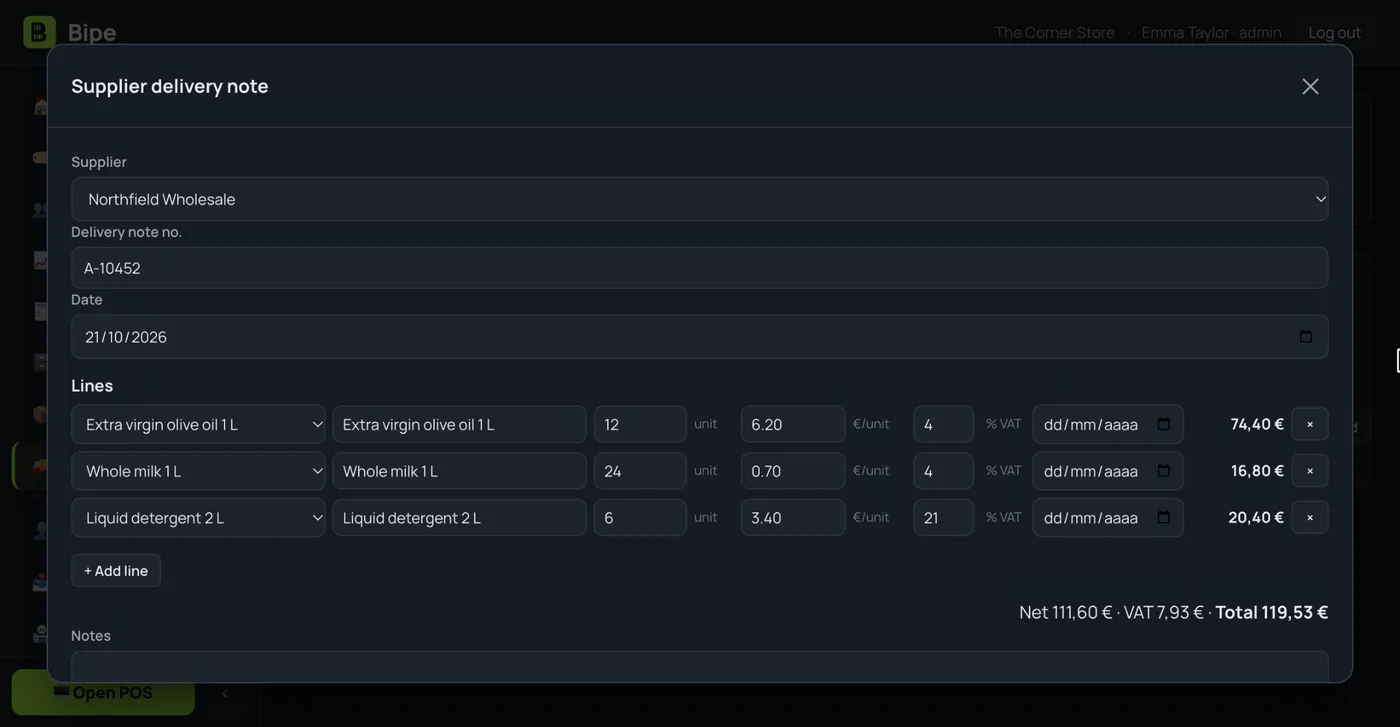
Each line of the supplier's delivery note has an optional expiry date field. When you save it, each date becomes a batch of that product, with its quantity and cost.
2. Or enter it by hand
Stock that was already in the shop? Add the expiry date from the dashboard and choose whether those goods add to stock or were already counted.
3. Bipe warns you
On the dashboard home screen you see what expires in the coming days and what has already expired, with what's left of each batch. Check it from the shop computer or your phone.
4. You decide what to do
Mark it down (a 20, 30 or 50% offer that lasts until the expiry day), throw it away as waste (it comes off stock) or mark it as sold.
Batch control with FEFO sales
If you need more control, turn on the “Batches and expiry dates” feature in Settings → Features and tick “Track batches and expiry” on the products that need it (dairy, meat, fish, ready meals…). Everything else stays the same.
- Every sale comes out of the batch that expires first (FEFO), with nothing for the cashier to do
- You know exactly how much is left of each date; a return goes back to its batch
- Batch number and cost from the delivery note or the supplier order
- You choose how many days ahead it warns you (1 to 90; 7 by default)
- Also works with products sold by weight: fruit, meat or deli in kilos
Less stock in the bin, more control
“We only notice once it has expired”
Alerts before it expires
The expiry list shows first what has expired and what expires today or tomorrow, colour-coded. No more checking shelf by shelf to know where to start.
“We sold an expired product by mistake”
Block sales of expired products
With the “Do not allow selling expired products” option, the POS warns before charging and won't sell a product when only expired units are left.
“How much should I knock off so it sells?”
Suggested markdown
With the “Batches and expiry dates” feature, Bipe suggests a bigger discount the closer the date is, without going below cost except on the last day. You apply it in one tap and the offer ends on its own when the product expires.
“I don't know how much money I throw away each month”
Waste and value at risk
See the value of what's about to expire, at cost and at selling price. With the “Batches and expiry dates” feature you also get an expiry waste report showing what each product thrown away has cost you.
“Customers want to see the date on the label”
Expiry date on the label
With the “Batches and expiry dates” feature, when you print price labels you can add the expiry date of the batch that goes out first.
“The delivery note and the shelf never match”
Stock, delivery notes and orders together
Expiry dates live in the same place as stock, delivery notes and supplier orders, so every delivery already comes with its date.
Questions about expiry dates
How does Bipe track expiry dates?
Do I have to enter the expiry date of every product?
What is FEFO selling?
Can it stop an expired product from being sold?
Does it work for fruit, meat and products sold by weight?
Does it read the expiry date from the barcode?
Does it alert me by email or on my phone?
Which plan includes expiry date control?
Is your business different?
Throw away less, sell more
Try Bipe free for 15 days. No lock-in: cancel whenever you like.